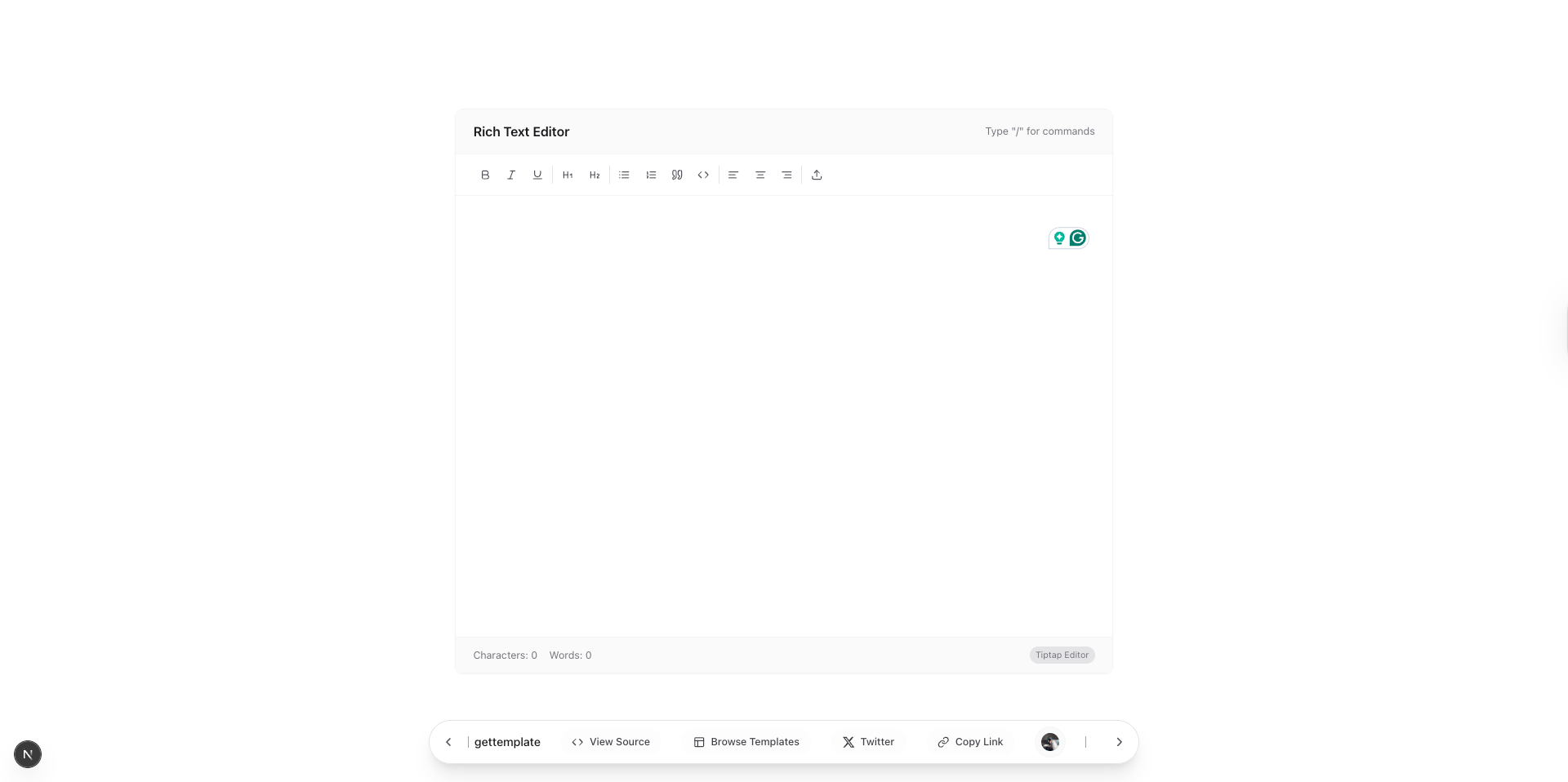
Hello and welcome to the new blog.
In this section, we will be building an advanced editor using another collaboration or software development toolkit by the tiptap team.
Earlier in our blogs, we always covered Editorjs as an editor for building notion-like editors.
Tiptap is the same headless and comes with extension-ready-to-install packages, install whenever needed to reduce the bundle size and improve the performance by far.
Editors in 2025 should not be boring, slow, and feature packages, automatic linking of domains, etc. Tiptap helps to achieve such kind of advanced editors for production-like applications.
Installing is quite easy, we will be using React with Nextjs, and a few other tiptap extension packages to quickly get started.
import React, { useState, useCallback, useEffect } from "react";
import { useEditor, EditorContent, BubbleMenu } from "@tiptap/react";

const Editor = () => {

	const editor = useEditor({
		content: "",
		editorProps: {
			attributes: {
				class:
					"prose prose-zinc max-w-none p-6 h-full overflow-y-auto focus:outline-none outline-none focus-visible:outline-none",
			},
		},
		onUpdate: ({ editor }) => {
			// Handle content updates
		},
		onSelectionUpdate: ({ editor }) => {
			// Handle selection updates for bubble menu
		},
	});

  return (
     <EditorContent editor={editor} />
   )
}
The above code provides a simple Editor, but we need a menu or slash commands to open some options for formatting, such as Bold, Italic and images and highlight and text colour and links.
import React, { useState, useCallback, useEffect } from "react";
import { useEditor, EditorContent, BubbleMenu } from "@tiptap/react";

const Editor = () => {
 const [showSlashMenu, setShowSlashMenu] = useState(false);
	const handleKeyDown = useCallback(
		(event) => {
			if (showSlashMenu) {
				if (event.key === "ArrowDown") {
					event.preventDefault();
					setSelectedItem((prev) => (prev + 1) % slashMenuItems.length);
				} else if (event.key === "ArrowUp") {
					event.preventDefault();
					setSelectedItem(
						(prev) => (prev - 1 + slashMenuItems.length) % slashMenuItems.length
					);
				} else if (event.key === "Enter") {
					event.preventDefault();
					if (slashMenuItems[selectedItem]) {
						slashMenuItems[selectedItem].command();
						setShowSlashMenu(false);
					}
				} else if (event.key === "Escape") {
					setShowSlashMenu(false);
				}
			}
		},
		[showSlashMenu, slashMenuItems, selectedItem]
	);

	useEffect(() => {
		document.addEventListener("keydown", handleKeyDown);
		return () => document.removeEventListener("keydown", handleKeyDown);
	}, [handleKeyDown]);

	const handleSlashCommand = useCallback(
		(event) => {
			const { view } = editor;
			if (!view) return;

			const { state } = view;
			const { selection } = state;
			const { $from } = selection;
			const textBefore = state.doc.textBetween(
				$from.start(),
				$from.pos,
				false,
				""
			);

			if (textBefore.endsWith("/")) {
				const coords = view.coordsAtPos($from.pos);
				const editorRect = view.dom.getBoundingClientRect();

				// Calculate position relative to the editor container
				const x = coords.left - editorRect.left;
				const y = coords.bottom - editorRect.top + 10;

				setSlashMenuPosition({ x, y });
				setSlashMenuItems(commands);
				setSelectedItem(0);
				setShowSlashMenu(true);
			} else {
				setShowSlashMenu(false);
			}
		},
		[editor, commands]
	);

	useEffect(() => {
		if (editor) {
			editor.on("update", handleSlashCommand);

			// Remove all outlines from the editor
			const style = document.createElement("style");
			style.textContent = `
				.ProseMirror {
					outline: none !important;
					focus: outline: none !important;
					focus-visible: outline: none !important;
				}
				.ProseMirror:focus {
					outline: none !important;
				}
				.ProseMirror:focus-visible {
					outline: none !important;
				}
			`;
			document.head.appendChild(style);

			return () => {
				editor.off("update", handleSlashCommand);
				document.head.removeChild(style);
			};
		}
	}, [editor, handleSlashCommand]);

	if (!editor) {
		return null;
	}

	const editor = useEditor({
		content: "",
		editorProps: {
			attributes: {
				class:
					"prose prose-zinc max-w-none p-6 h-full overflow-y-auto focus:outline-none outline-none focus-visible:outline-none",
			},
		},
		onUpdate: ({ editor }) => {
			// Handle content updates
		},
		onSelectionUpdate: ({ editor }) => {
			// Handle selection updates for bubble menu
		},
	});

  return (
<div>
{/* Slash Commands Menu */}
					<AnimatePresence>
						{showSlashMenu && (
							<motion.div
								initial={{ opacity: 0, scale: 0.95, y: -10 }}
								animate={{ opacity: 1, scale: 1, y: 0 }}
								exit={{ opacity: 0, scale: 0.95, y: -10 }}
								transition={{ duration: 0.15 }}
								style={{
									position: "absolute",
									left: slashMenuPosition.x,
									top: slashMenuPosition.y,
									zIndex: 50,
								}}
								className="bg-white border border-zinc-200 rounded-xl shadow-lg overflow-hidden min-w-[280px]"
							>
								<div className="p-2">
									<div className="text-xs font-medium text-zinc-500 px-3 py-2 border-b border-zinc-100">
										Commands
									</div>
									<div className="max-h-64 overflow-y-auto">
										{slashMenuItems.map((item, index) => (
											<motion.button
												key={index}
												whileHover={{ backgroundColor: "#f4f4f5" }}
												onClick={() => {
													item.command();
													setShowSlashMenu(false);
												}}
												className={`w-full flex items-center rounded-xl my-2 space-x-3 px-3 py-2 text-left transition-colors ${
													index === selectedItem
														? "bg-zinc-100"
														: "hover:bg-zinc-50"
												}`}
											>
												<div className="flex-shrink-0 w-8 h-8 bg-zinc-100 rounded-xl flex items-center justify-center">
													{item.icon}
												</div>
												<div className="flex-1 min-w-0">
													<div className="text-sm font-medium text-zinc-900 truncate">
														{item.title}
													</div>
													<div className="text-xs text-zinc-500 truncate">
														{item.description}
													</div>
												</div>
												<div className="flex-shrink-0">
													<Plus className="w-4 h-4 text-zinc-400" />
												</div>
											</motion.button>
										))}
									</div>
								</div>
							</motion.div>
						)}
					</AnimatePresence>
     <EditorContent editor={editor} />
</div>
   )
}
Adding a bubble menu when / command or keyboard event is triggered in the above code
const editor = useEditor({
		extensions: [
      StarterKit.configure({
				bulletList: {
					keepMarks: true,
					keepAttributes: false,
				},
				orderedList: {
					keepMarks: true,
					keepAttributes: false,
				},
				heading: {
					levels: [1, 2],
				},
				link: {
					openOnClick: false,
					HTMLAttributes: {
						class: "text-zinc-500 hover:text-zinc-700 underline",
					},
				},
			}),
			Link.configure({
				protocols: ["http", "https", "mailto"],
				HTMLAttributes: {
					class: "text-zinc-500 hover:text-zinc-700 underline",
				},
			}),
			Placeholder.configure({
				placeholder: "Start writing your blog post... Type / for commands",
			}),
			TextAlign.configure({
				types: ["heading", "paragraph"],
			}),
			Underline,
			Highlight,
			TextStyle,
			Color,
			Typography,
			TaskList,
			TaskItem.configure({
				nested: true,
			}),
			Markdown.configure({
				html: false,
				transformPastedText: true,
				transformCopiedText: true,
			}),
    ],
		content: "",
		editorProps: {
			attributes: {
				class:
					"prose prose-zinc max-w-none p-6 h-full overflow-y-auto focus:outline-none outline-none focus-visible:outline-none",
			},
		},
		onUpdate: ({ editor }) => {
			// Handle content updates
		},
		onSelectionUpdate: ({ editor }) => {
			// Handle selection updates for bubble menu
		},
	});

	const commands = [
		{
			title: "Heading 1",
			description: "Large section heading",
			icon: <Heading1 className="w-4 h-4" />,
			command: () => editor?.chain().focus().toggleHeading({ level: 1 }).run(),
		},
		{
			title: "Heading 2",
			description: "Medium section heading",
			icon: <Heading2 className="w-4 h-4" />,
			command: () => editor?.chain().focus().toggleHeading({ level: 2 }).run(),
		},
		{
			title: "Text",
			description: "Regular paragraph text",
			icon: <Type className="w-4 h-4" />,
			command: () => editor?.chain().focus().setParagraph().run(),
		},
		{
			title: "Bold",
			description: "Make text bold",
			icon: <Bold className="w-4 h-4" />,
			command: () => editor?.chain().focus().toggleBold().run(),
		},
		{
			title: "Italic",
			description: "Make text italic",
			icon: <Italic className="w-4 h-4" />,
			command: () => editor?.chain().focus().toggleItalic().run(),
		},
		{
			title: "Underline",
			description: "Underline text",
			icon: <UnderlineIcon className="w-4 h-4" />,
			command: () => editor?.chain().focus().toggleUnderline().run(),
		},
		{
			title: "Bullet List",
			description: "Create a bullet list",
			icon: <List className="w-4 h-4" />,
			command: () => editor?.chain().focus().toggleBulletList().run(),
		},
		{
			title: "Numbered List",
			description: "Create a numbered list",
			icon: <ListOrdered className="w-4 h-4" />,
			command: () => editor?.chain().focus().toggleOrderedList().run(),
		},
		{
			title: "Quote",
			description: "Add a quote block",
			icon: <Quote className="w-4 h-4" />,
			command: () => editor?.chain().focus().toggleBlockquote().run(),
		},
		{
			title: "Code Block",
			description: "Add a code block",
			icon: <Code className="w-4 h-4" />,
			command: () => editor?.chain().focus().toggleCodeBlock().run(),
		},
		{
			title: "Image",
			description: "Insert an image",
			icon: <ImageIcon className="w-4 h-4" />,
			command: () => {
				const url = window.prompt("Enter image URL:");
				if (url) {
					editor?.chain().focus().setImage({ src: url }).run();
				}
			},
		},
		{
			title: "Align Left",
			description: "Align text to the left",
			icon: <AlignLeft className="w-4 h-4" />,
			command: () => editor?.chain().focus().setTextAlign("left").run(),
		},
		{
			title: "Align Center",
			description: "Center align text",
			icon: <AlignCenter className="w-4 h-4" />,
			command: () => editor?.chain().focus().setTextAlign("center").run(),
		},
		{
			title: "Align Right",
			description: "Align text to the right",
			icon: <AlignRight className="w-4 h-4" />,
			command: () => editor?.chain().focus().setTextAlign("right").run(),
		},
	];

	const handleKeyDown = useCallback(
		(event) => {
			if (showSlashMenu) {
				if (event.key === "ArrowDown") {
					event.preventDefault();
					setSelectedItem((prev) => (prev + 1) % slashMenuItems.length);
				} else if (event.key === "ArrowUp") {
					event.preventDefault();
					setSelectedItem(
						(prev) => (prev - 1 + slashMenuItems.length) % slashMenuItems.length
					);
				} else if (event.key === "Enter") {
					event.preventDefault();
					if (slashMenuItems[selectedItem]) {
						slashMenuItems[selectedItem].command();
						setShowSlashMenu(false);
					}
				} else if (event.key === "Escape") {
					setShowSlashMenu(false);
				}
			}
		},
		[showSlashMenu, slashMenuItems, selectedItem]
	);

	useEffect(() => {
		document.addEventListener("keydown", handleKeyDown);
		return () => document.removeEventListener("keydown", handleKeyDown);
	}, [handleKeyDown]);

	const handleSlashCommand = useCallback(
		(event) => {
			const { view } = editor;
			if (!view) return;

			const { state } = view;
			const { selection } = state;
			const { $from } = selection;
			const textBefore = state.doc.textBetween(
				$from.start(),
				$from.pos,
				false,
				""
			);

			if (textBefore.endsWith("/")) {
				const coords = view.coordsAtPos($from.pos);
				const editorRect = view.dom.getBoundingClientRect();

				// Calculate position relative to the editor container
				const x = coords.left - editorRect.left;
				const y = coords.bottom - editorRect.top + 10;

				setSlashMenuPosition({ x, y });
				setSlashMenuItems(commands);
				setSelectedItem(0);
				setShowSlashMenu(true);
			} else {
				setShowSlashMenu(false);
			}
		},
		[editor, commands]
	);

	useEffect(() => {
		if (editor) {
			editor.on("update", handleSlashCommand);

			// Remove all outlines from the editor
			const style = document.createElement("style");
			style.textContent = `
				.ProseMirror {
					outline: none !important;
					focus: outline: none !important;
					focus-visible: outline: none !important;
				}
				.ProseMirror:focus {
					outline: none !important;
				}
				.ProseMirror:focus-visible {
					outline: none !important;
				}
			`;
			document.head.appendChild(style);

			return () => {
				editor.off("update", handleSlashCommand);
				document.head.removeChild(style);
			};
		}
	}, [editor, handleSlashCommand]);

	if (!editor) {
		return null;
	}
The above methods are for handling keyboard events, toggling the dropdown states.
AnimatePresence is a wrapper component by framer-motion, the animation library, so don't worry much why I am wrapping the component inside it, it's a wrapper to hide/show the DOM elements with some ease and durations and out of the DOM, preventing rerendering, a more optimised solution.
Moving ahead, once slash command keyboard events are added, one can use extensions for bold, italic, underline and images.
const editor = useEditor({
		extensions: [
      StarterKit.configure({
				bulletList: {
					keepMarks: true,
					keepAttributes: false,
				},
				orderedList: {
					keepMarks: true,
					keepAttributes: false,
				},
				heading: {
					levels: [1, 2],
				},
				link: {
					openOnClick: false,
					HTMLAttributes: {
						class: "text-zinc-500 hover:text-zinc-700 underline",
					},
				},
			}),
			Link.configure({
				protocols: ["http", "https", "mailto"],
				HTMLAttributes: {
					class: "text-zinc-500 hover:text-zinc-700 underline",
				},
			}),
			Placeholder.configure({
				placeholder: "Start writing your blog post... Type / for commands",
			}),
			TextAlign.configure({
				types: ["heading", "paragraph"],
			}),
			Underline,
			Highlight,
			TextStyle,
			Color,
			Typography,
			TaskList,
			TaskItem.configure({
				nested: true,
			}),
			Markdown.configure({
				html: false,
				transformPastedText: true,
				transformCopiedText: true,
			}),
    ],
		content: "",
		editorProps: {
			attributes: {
				class:
					"prose prose-zinc max-w-none p-6 h-full overflow-y-auto focus:outline-none outline-none focus-visible:outline-none",
			},
		},
		onUpdate: ({ editor }) => {
			// Handle content updates
		},
		onSelectionUpdate: ({ editor }) => {
			// Handle selection updates for bubble menu
		},
	});
In the useEditor configuration, we provide an extension array for each DOM element we want to configure, as shown, for example, bold, bullet list, code, ordered list, images and so on.
One can even generate a custom node as shown below, read more
import { Node } from '@tiptap/core'

const CustomNode = Node.create({
  name: 'customNode',

  // Your code goes here.
})
Read more in detail about extensions
At last, add CSS for proper styling and change the theme according to your needs.
	<style jsx global>{`
				.ProseMirror:focus {
					outline: none !important;
					max-width: 50% !important;
				}
				.ProseMirror p {
					margin: 0;
					line-height: 2.5em;
					position: relative;
				}
				.ProseMirror h1 {
					font-size: 1.5em !important;
					font-weight: 700 !important;
					color: #1a202c !important;
					padding: 0.5em 0;
				}
				.ProseMirror h2 {
					font-size: 1.2em !important;
					font-weight: 600 !important;
					color: #2d3748 !important;
					padding: 0.5em 0;
				}
				.ProseMirror ul,
				.ProseMirror ol {
					padding: 0 1em !important;
					margin: 1em 0 !important;
					background: white;
				}
				.ProseMirror ul {
					list-style-type: disc !important;
				}
				.ProseMirror ol {
					list-style-type: decimal !important;
				}
				.ProseMirror li {
					margin: 0.5em 0 !important;
					line-height: 2.5em !important;
				}
				.ProseMirror blockquote {
					border-left: 3px solid #e2e8f0 !important;
					padding-left: 1em !important;
					margin: 1em 0 !important;
					font-style: italic !important;
					color: #4a5568 !important;
					background: white;
				}
				.ProseMirror code {
					background: #f1f5f9 !important;
					padding: 0.2em 0.4em !important;
					border-radius: 3px !important;
					font-family: monospace !important;
				}
				.ProseMirror pre {
					background: #f1f5f9 !important;
					padding: 1em !important;
					border-radius: 4px !important;
					margin: 1em 0 !important;
					overflow-x: auto !important;
				}
				.ProseMirror a {
					color: #3b82f6 !important;
					text-decoration: underline !important;
				}
				.ProseMirror a:hover {
					color: #1d4ed8 !important;
				}
				.ProseMirror ul[data-type="taskList"] {
					list-style: none !important;
					padding: 0 !important;
				}
				.ProseMirror li[data-type="taskItem"] {
					display: flex !important;
					align-items: center !important;
				}
				.ProseMirror li[data-type="taskItem"] > label {
					flex: 0 0 auto !important;
					margin-right: 0.5rem !important;
					user-select: none !important;
				}
				.ProseMirror li[data-type="taskItem"] > div {
					flex: 1 1 auto !important;
				}
				.ProseMirror strong {
					font-weight: 600 !important;
					color: #2d3748 !important;
				}
				.ProseMirror em {
					font-style: italic !important;
					color: #4a5568 !important;
				}
				.ProseMirror u {
					text-decoration: underline !important;
				}
				.ProseMirror s {
					text-decoration: line-through !important;
				}
				pre {
					white-space: pre-wrap !important;
					word-wrap: break-word !important;
				}
			`}</style>
Details of extensions are available for functionality such as Marking, Collaboration, Version control or History, Exporting, Cursor events, Drag and drop Embeds, Tables, etc.
Tiptap is quite a good package for dumping the heavy payload work on a third party to build the advanced Notion or Obsidian-type editor.
Preview and Source Code, Tiptap Editor
That's it for today, see you in the next one
iHateReading
Summary
This blog post details building an advanced editor using Tiptap, a headless, extension-based editor framework, within a React/Next.js application. It contrasts Tiptap with Editor.js, highlighting Tiptap's performance advantages due to its extension system. The post demonstrates implementing slash commands for formatting options (bold, italic, images, links, etc.) via keyboard shortcuts and a dropdown menu. It further covers integrating various Tiptap extensions for rich text editing features and customizing styling with CSS. Finally, it links to a live preview and source code of the implemented editor and additional Tiptap documentation.