Welcome to the new blog in today's story; we will bring a small content for MySQL starters or developers who want to learn
But I'll take something new and interesting, and instead of Node and Express or FastAPI, I'll be using Hono.js
Hono.js is a web application framework, and it's a lightweight, performant JavaScript runtime. Treat it as an alternative to Node.js Express
To simply get started with Hono.js,
npm init
npm i hono
After using npm init to add a package.json file along with packages.
Once this is done, we have a simple hono app on how to run a simple GET API on a local server
import {hono} from "hono"

const app = new Hono()

app.get("/", c.text("Done"));

export default app
Now the above single server.js file code has exposed "/" endpoint to server response, it's an API and using hono, we can directly send response as text, markdown, string, html, JSON or even React JSX code, that is why hono.js is quite trending and gaining popularity.
Adding Endpoints
Quite an easy steps I am giving, getting started with source code; otherwise, you should split the endpoints as file-based routing or simply microservices-based routing of the endpoints.
Adding other endpoints is similar to a Node Express app
import axios from axios;
import {Hono} from "hono";

const app = new Hono();

app.get("/users", (c) => {
  const users = await axios.get("https://jsonplaceholder.com/users")
  c.json(users);
});

export default app;
Sending HTML as a response is a built-in support feature
import axios from axios;
import {Hono} from "hono";

const app = new Hono();

app.get("/get-first-user", (c) => {
  const users = await axios.get("https://jsonplaceholder.com/user/1")
  c.html(<p>{user.name}</p>);
});

export default app;
This endpoint will always return the first user from the JSON placeholder API in the html format, so one can easily render an HTML file on the client side using hono as well.
Well, this quickly gives me an idea to add a database, and I want to try for our iHateReading database, such as Firebase. To work with Firebase, we need project ENV keys and the Firebase npm module for the backend frameworks like hono.
import axios from axios;
import {Hono} from "hono";
import { firestore } from "./firebase.js";

const app = new Hono();

app.get("/blogs", (c) => {
  const users = await
  c.html(<p>{user.name}</p>);
});

export default app;
firebase.js
import { initializeApp, getApps, cert } from "firebase-admin/app";
import { getFirestore } from "firebase-admin/firestore";
import serviceAccount from "./service-account-file.js";

if (getApps().length === 0) {
	initializeApp({
		credential: cert(serviceAccount),
		projectId: process.env.FIREBASE_PROJECT_ID,
	});
}

const firestore = getFirestore();

export { firestore };
.service-account-file.json
export default {
	type: "",
	project_id: "",
	private_key_id: "",
	private_key: "",
	client_email:
		"",
	client_id: "",
	auth_uri: "",
	token_uri: "",
	auth_provider_x509_cert_url: "",
	client_x509_cert_url:
		"",
};
Once these 2 steps are added, Firebase is connected and can be accessed via the below endpoint to render all blogs of our website
import axios from axios;
import {Hono} from "hono";
import { firestore } from "./firebase.js";

const app = new Hono();

app.get("/blogs", (c) => {
	try {
		// Fetch blog posts from Firestore
		const postsSnapshot = await firestore
			.collection("publish")
			.orderBy("timeStamp", "desc")
			.get();
		const posts = [];

		postsSnapshot.docs.forEach(async (doc) => {
			posts.push({
				id: doc.id,
				...doc.data(),
			});
		});

		// Format timestamp (assuming it's a Firestore timestamp)
		const formatDate = (timestamp) => {
			if (!timestamp) return "Unknown date";
			const date = timestamp.toDate ? timestamp.toDate() : new Date(timestamp);
			return date.toLocaleDateString("en-US", {
				year: "numeric",
				month: "long",
				day: "numeric",
			});
		};

		const calculateReadingTime = (htmlContent) => {
			if (!htmlContent) return 0;
			// Remove HTML tags
			const text = htmlContent.replace(/<[^>]*>/g, " ");
			// Remove extra whitespace and split into words
			const words = text.trim().split(/\s+/);
			const wordsPerMinute = 200; // average reading speed
			const minutes = Math.ceil(words.length / wordsPerMinute);
			return isNaN(minutes) ? 0 : minutes;
		};

		const bloghtml = `
  <html>
  <script src="https://cdn.tailwindcss.com"></script>
  <body class="bg-gray-50 min-h-screen">
    <div class="container mx-auto px-4 py-8 max-w-7xl">
      <header class="mb-12">
        <h1 class="text-4xl font-bold text-gray-900 mb-2">Blog</h1>
        <p class="text-gray-600">Latest articles by <a href="https://ihatereading.in" class="text-zinc-600 hover:text-zinc-800 underline cursor-pointer font-medium" target="_blank">iHateReading.in</a></p>
      </header>

      <div class="space-y-2 grid grid-cols-1 md:grid-cols-1 lg:grid-cols-1 gap-4 justify-center items-start">
        ${posts
					.filter((item) => (item?.title?.length > 0 ? item : null))
					.map(
						(post) => `
          <article class="bg-white cursor-pointer max-w-4xl mx-auto rounded-xl shadow-md p-6 hover:shadow-lg transition-shadow my-4"  onClick="window.location.href='/t/${post?.title.replace(
						/\s+/g,
						"-"
					)}'">
            <header class="mb-4">

              <h2 class="text-2xl font-bold text-gray-900 mb-2 hover:text-zinc-600 transition-colors">
                ${post?.title || post?.name}
              </h2>
              <p class="text-gray-600 text-lg mb-3">
                ${post?.description || post?.htmlContent?.substring(0, 150)}
              </p>
              <div class="flex items-center text-sm text-gray-500 space-x-4">
                <span class="flex items-center">
                  <svg class="w-4 h-4 mr-1" fill="none" stroke="currentColor" viewBox="0 0 24 24">
                    <path stroke-linecap="round" stroke-linejoin="round" stroke-width="2" d="M8 7V3m8 4V3m-9 8h10M5 21h14a2 2 0 002-2V7a2 2 0 00-2-2H5a2 2 0 00-2 2v12a2 2 0 002 2z"></path>
                  </svg>
                  ${formatDate(post?.timeStamp)}
                </span>
                <span class="flex items-center">
                  <svg class="w-4 h-4 mr-1" fill="none" stroke="currentColor" viewBox="0 0 24 24">
                    <path stroke-linecap="round" stroke-linejoin="round" stroke-width="2" d="M12 8v4l3 3m6-3a9 9 0 11-18 0 9 9 0 0118 0z"></path>
                  </svg>
                  ${calculateReadingTime(post?.content)} min read
                </span>
              </div>
            </header>
            <footer class="mt-6 pt-4 border-t border-gray-200">
              <a href="/t/${post?.title.replace(
								/\s+/g,
								"-"
							)}" class="text-zinc-600 cursor-pointer hover:text-zinc-800 font-medium">
                Read blog →
              </a>
            </footer>
          </article>
        `
					)
					.join("")}
      </div>
    </div>
  </body>
  </html>
  `;
		return c.html(bloghtml);
	} catch (error) {
		console.error("Error fetching posts:", error);
		return c.text("Error loading blog posts", 500);
   };
});

export default app;
This is quite an easy step to connect the database, fetch all blogs and render the final HTML The response time in the dev inspector for the final /blogs HTML file is less than 3 seconds, rendering 300+ blogs on the go, making hono quite fast and small bundle.
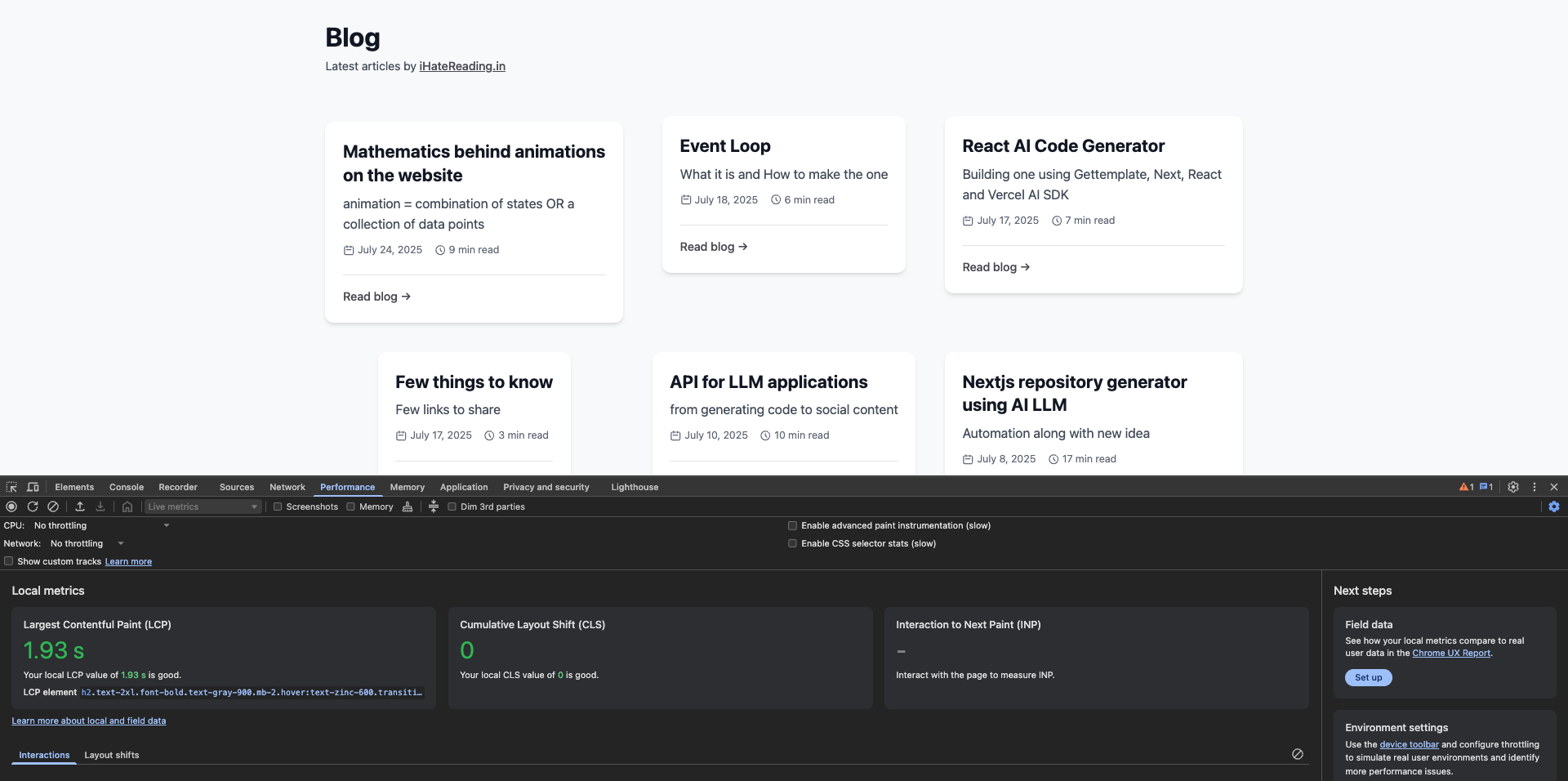
In the above endpoint, the following steps are followed
- First, fetch all blogs in timestamp descending order, latest first
- Define methods to calculate reading time using the content string and the published date
- Create a final HTML file using each blog's content and the map method
- Return the final HTML file as the response
Moving ahead with rendering a single blog using another endpoint, and this endpoint will take the request parameter as input to the GET endpoint
app.get("/t/:slug", async (c) => {
	try {
		const slug = c.req.param("slug");

		// Convert slug back to title by replacing hyphens with spaces
		const title = slug.replace(/-/g, " ");

		// Fetch the specific blog post from Firestore
		const postsSnapshot = await firestore
			.collection("publish")
			.where("title", "==", title)
			.get();

		const post = {
			id: postsSnapshot.docs[0].id,
			...postsSnapshot.docs[0].data(),
		};

		// Format timestamp (assuming it's a Firestore timestamp)
		const formatDate = (timestamp) => {
			if (!timestamp) return "Unknown date";
			const date = timestamp.toDate ? timestamp.toDate() : new Date(timestamp);
			return date.toLocaleDateString("en-US", {
				year: "numeric",
				month: "long",
				day: "numeric",
			});
		};

		const calculateReadingTime = (htmlContent) => {
			if (!htmlContent) return 0;
			// Remove HTML tags
			const text = htmlContent.replace(/<[^>]*>/g, " ");
			// Remove extra whitespace and split into words
			const words = text.trim().split(/\s+/);
			const wordsPerMinute = 200; // average reading speed
			const minutes = Math.ceil(words.length / wordsPerMinute);
			return isNaN(minutes) ? 0 : minutes;
		};

		const blogPostHtml = `
  <html>
  <script src="https://cdn.tailwindcss.com"></script>
  <link rel="stylesheet" href="/blog-styles.css" />
  <script>
    function copyToClipboard(text) {
      navigator.clipboard.writeText(text).then(function() {
        // Show a temporary success message
        const button = event.target.closest('button');
        const originalHTML = button.innerHTML;
        button.innerHTML = '<svg class="w-5 h-5" fill="none" stroke="currentColor" viewBox="0 0 24 24"><path stroke-linecap="round" stroke-linejoin="round" stroke-width="2" d="M5 13l4 4L19 7"></path></svg>';
        button.classList.remove('text-gray-500', 'hover:text-green-600');
        button.classList.add('text-green-600');

        setTimeout(() => {
          button.innerHTML = originalHTML;
          button.classList.remove('text-green-600');
          button.classList.add('text-gray-500', 'hover:text-green-600');
        }, 2000);
      }).catch(function(err) {
        console.error('Could not copy text: ', err);
      });
    }
  </script>
  <body class="bg-gray-50 min-h-screen">
    <div class="container mx-auto px-4 py-8 max-w-4xl">
      <a href="/home" class="text-zinc-600 hover:text-zinc-800 font-medium inline-block">
        ← Back to Blog
      </a>
      <header class="mt-8 bg-white rounded-t-xl shadow-md px-8 pb-4 pt-8">
        <h1 class="text-2xl font-bold text-gray-900">${
					post?.title || post?.name
				}</h1>
        <p class="text-gray-600 text-lg mb-4">${post?.description || ""}</p>
        <div class="flex items-center justify-between">
          <div class="flex items-center text-sm text-gray-500 space-x-4">
            <span class="flex items-center">
              <svg class="w-4 h-4 mr-1" fill="none" stroke="currentColor" viewBox="0 0 24 24">
                <path stroke-linecap="round" stroke-linejoin="round" stroke-width="2" d="M8 7V3m8 4V3m-9 8h10M5 21h14a2 2 0 002-2V7a2 2 0 00-2-2H5a2 2 0 00-2 2v12a2 2 0 002 2z"></path>
              </svg>
              ${formatDate(post?.timeStamp)}
            </span>
            <span class="flex items-center">
              <svg class="w-4 h-4 mr-1" fill="none" stroke="currentColor" viewBox="0 0 24 24">
                <path stroke-linecap="round" stroke-linejoin="round" stroke-width="2" d="M12 8v4l3 3m6-3a9 9 0 11-18 0 9 9 0 0118 0z"></path>
              </svg>
              ${calculateReadingTime(post?.content)} min read
            </span>
          </div>

          <div class="flex items-center justify-start space-x-3">
            <!-- Twitter Icon -->
            <a href="https://twitter.com/intent/tweet?text=${encodeURIComponent(
							post?.title || post?.name
						)}&url=${encodeURIComponent(`http://localhost:3001/t/${slug}`)}"
               target="_blank"
               class="text-gray-500 hover:text-blue-400 transition-colors duration-200">
              <svg class="w-5 h-5" fill="currentColor" viewBox="0 0 24 24">
                <path d="M23.953 4.57a10 10 0 01-2.825.775 4.958 4.958 0 002.163-2.723c-.951.555-2.005.959-3.127 1.184a4.92 4.92 0 00-8.384 4.482C7.69 8.095 4.067 6.13 1.64 3.162a4.822 4.822 0 00-.666 2.475c0 1.71.87 3.213 2.188 4.096a4.904 4.904 0 01-2.228-.616v.06a4.923 4.923 0 003.946 4.827 4.996 4.996 0 01-2.212.085 4.936 4.936 0 004.604 3.417 9.867 9.867 0 01-6.102 2.105c-.39 0-.779-.023-1.17-.067a13.995 13.995 0 007.557 2.209c9.053 0 13.998-7.496 13.998-13.985 0-.21 0-.42-.015-.63A9.935 9.935 0 0024 4.59z"/>
              </svg>
            </a>

            <!-- LinkedIn Icon -->
            <a href="https://www.linkedin.com/sharing/share-offsite/?url=${encodeURIComponent(
							`http://localhost:3001/t/${slug}`
						)}"
               target="_blank"
               class="text-gray-500 hover:text-blue-600 transition-colors duration-200">
              <svg class="w-5 h-5" fill="currentColor" viewBox="0 0 24 24">
                <path d="M20.447 20.452h-3.554v-5.569c0-1.328-.027-3.037-1.852-3.037-1.853 0-2.136 1.445-2.136 2.939v5.667H9.351V9h3.414v1.561h.046c.477-.9 1.637-1.85 3.37-1.85 3.601 0 4.267 2.37 4.267 5.455v6.286zM5.337 7.433c-1.144 0-2.063-.926-2.063-2.065 0-1.138.92-2.063 2.063-2.063 1.14 0 2.064.925 2.064 2.063 0 1.139-.925 2.065-2.064 2.065zm1.782 13.019H3.555V9h3.564v11.452zM22.225 0H1.771C.792 0 0 .774 0 1.729v20.542C0 23.227.792 24 1.771 24h20.451C23.2 24 24 23.227 24 22.271V1.729C24 .774 23.2 0 22.222 0h.003z"/>
              </svg>
            </a>

            <!-- Copy Link Icon -->
            <button onclick="copyToClipboard('http://localhost:3001/t/${slug}')"
                    class="text-gray-500 hover:text-green-600 transition-colors duration-200">
              <svg class="w-5 h-5" fill="none" stroke="currentColor" viewBox="0 0 24 24">
                <path stroke-linecap="round" stroke-linejoin="round" stroke-width="2" d="M8 16H6a2 2 0 01-2-2V6a2 2 0 012-2h8a2 2 0 012 2v2m-6 12h8a2 2 0 002-2v-8a2 2 0 00-2-2h-8a2 2 0 00-2 2v8a2 2 0 002 2z"/>
              </svg>
            </button>
          </div>
        </div>

      </header>

      <article class="bg-white rounded-b-xl shadow-md p-8">
        <div class="prose prose-lg max-w-none">
          ${post?.content || "Content not available"}
        </div>
      </article>
    </div>
  </body>
  </html>
  `;

		return c.html(blogPostHtml);
	} catch (error) {
		console.error("Error fetching blog post:", error);
		return c.text("Error loading blog post", 500);
	}
});
Please Note: In hono, unlike Express, we ain't need to parse the request object param; we can access them using c.req.params or c.req.queries, read more here.
Now this endpoint takes a slug param in the request object and fetches the article from the database using the slug as the title stored in the firestore database collection. If you are using MySQL or PostgreSQL, you can use the same
SELECT * FROM Blogs WHERE title === c.req.params("slug")Then we create a single blog final HTML file and return back as the response, also, in the /blogs API endpoint, I've added an onClick event handler to the HTML file to change the window location to /t/:slug route or URL. In this way, within the browser, I can access the /t/slug endpoint to view the final HTML response as shown below
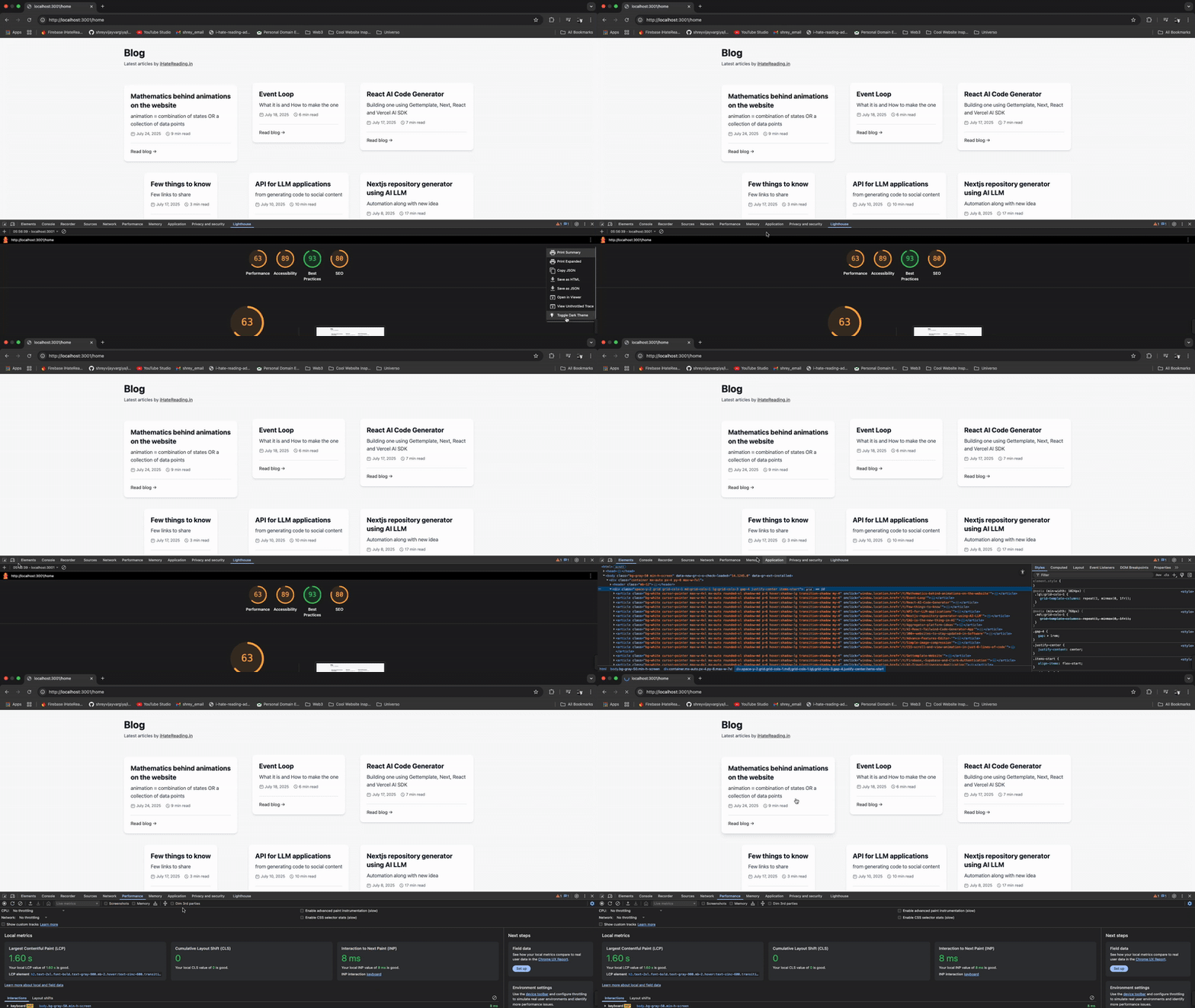
Now, in a few steps, I've rendered 300+ blogs with less than 2 seconds of total content paint time on the browser, making hono a quite robust choice for solid, performant applications.
Hono works well with MongoDB, PostgreSQL and other databases such as Firebase, Supabase, Planetscale or ClickHouse or DuckDB
Hono is quite compatible with frontend frameworks such as React, Vite and Nextjs, making them a full-stack application choice of framework
Hono provide in-built support for packages like JWT, Parsing, server PORT running, loggers, stream response, response types in HTML, Markdown and JSON
That would be enough to easily get started with Hono.js and read more on the website. That's it for today. See you in the next one
iHateReading
Summary
This blog post demonstrates building a fast and efficient blog API using Hono.js, a lightweight JavaScript web framework. The author shows how to quickly set up Hono, create endpoints to serve text, JSON, and HTML responses, and integrate with Firebase Firestore to fetch and display blog posts. The examples include fetching all blog posts and rendering them in a paginated HTML view, and fetching individual blog posts based on a URL slug. The author highlights Hono's speed and ease of use, showcasing its compatibility with various databases and frontend frameworks. The final application efficiently renders over 300 blog posts with a fast response time.